未分類」カテゴリーアーカイブ

JetsonNanoGAME-PAD設定

Access JetBot by going to https://<jetbot_ip_address>:8888, navigate to ~/Notebooks/teleoperation/
Open teleoperation.ipynb file and following notebook
Connect USB adapter to PC
Go to https://html5gamepad.com, check the INDEX of Gamepad
Before you run the example, let's learn how the gamepad work.
The gamepad included supports two working modes. One is PC/PS3/Andorid mode and another is Xbox 360 mode.
The gamepad is set to PC/PS3/Andorid mode by default, in this mode, the gamepad has two sub-modes. You can press the HOME button to switch it. In Mode 1, the front panel lights on only one LED, the right joystick is mapped to buttons 0,1,2 and 3, and you can get only 0 or -1/1 value from the joysticks. In Mode 2, the front panel lights on two LEDs, the right joystick is mapped to axes[2] and axes[5]. In this mode, you can get No intermediate values from joysticks.

To switch between PC/PS3/Andorid mode and the Xbox 360 mode, you can long-press the HOME button for about 7s. In Xbox mode, the left joystick is mapped to axes[0] and axes[1], right joystick is mapped to axes[2] and axes[3]. This mode is exactly what the NVIDIA examples use. We recommend you to set your gamepad to this mode when you use it. Otherwise, you need to modify the codes.

https://www.waveshare.com/wiki/JetBot_2GB_AI_Kit

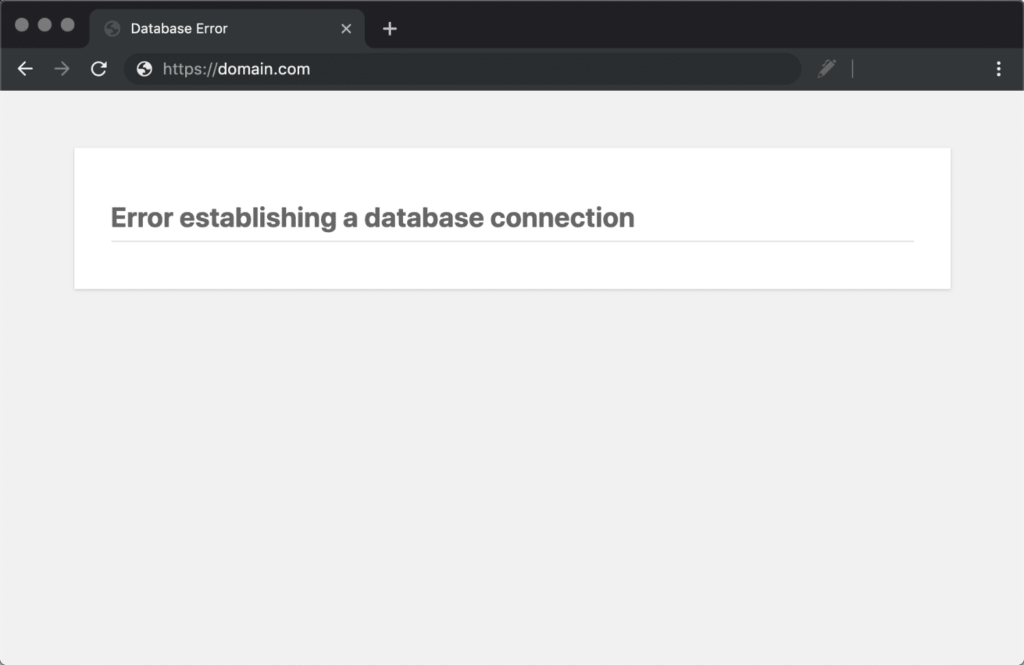
wordpress/mariadbが起動しないので対処した

DataBase(Mariadb)に接続できない
root@ps2:/var/lib/mysql# systemctl status mariadb
● mariadb.service - MariaDB 10.3.34 database server
   Loaded: loaded (/lib/systemd/system/mariadb.service; enabled; vendor preset: enabled)
   Active: failed (Result: exit-code) since Fri 2022-04-01 11:02:34 JST; 10min ago
     Docs: man:mysqld(8)
           https://mariadb.com/kb/en/library/systemd/
  Process: 575 ExecStartPre=/usr/bin/install -m 755 -o mysql -g root -d /var/run/mysqld (code=exited, status=0/SUCCESS)
  Process: 600 ExecStartPre=/bin/sh -c systemctl unset-environment _WSREP_START_POSITION (code=exited, status=0/SUCCESS)
  Process: 667 ExecStartPre=/bin/sh -c [ ! -e /usr/bin/galera_recovery ] && VAR= ||   VAR=`cd /usr/bin/..; /usr/bin/galera_recovery`; [ $? -eq 0 ]   && systemctl s
  Process: 823 ExecStart=/usr/sbin/mysqld $MYSQLD_OPTS $_WSREP_NEW_CLUSTER $_WSREP_START_POSITION (code=exited, status=1/FAILURE)
 Main PID: 823 (code=exited, status=1/FAILURE)
   Status: "MariaDB server is down"

 4月 01 11:02:28 ps2 systemd[1]: Starting MariaDB 10.3.34 database server...
 4月 01 11:02:31 ps2 mysqld[823]: 2022-04-01 11:02:31 0 [Note] /usr/sbin/mysqld (mysqld 10.3.34-MariaDB-0+deb10u1) starting as process 823 ...
 4月 01 11:02:34 ps2 systemd[1]: mariadb.service: Main process exited, code=exited, status=1/FAILURE
 4月 01 11:02:34 ps2 systemd[1]: mariadb.service: Failed with result 'exit-code'.
 4月 01 11:02:34 ps2 systemd[1]: Failed to start MariaDB 10.3.34 database server.

ログファイの肥大化などが原因になることもあるようだ。

oot@ps2:/var/log/mysql# find / -name "ib_logfile*" 2>/dev/null
/var/lib/mysql/ib_logfile0
/var/lib/mysql/ib_logfile1
^C
root@ps2:/var/log/mysql# cd /var/lib/mysql/
root@ps2:/var/lib/mysql# ls -l
合計 176180
-rw-rw---- 1 mysql mysql    16384  4月  1 11:02 aria_log.00000001
-rw-rw---- 1 mysql mysql       52  4月  1 11:02 aria_log_control
-rw-r--r-- 1 root  root         0  3月 31 19:09 debian-10.3.flag
-rw-rw---- 1 mysql mysql     6174  3月 31 19:17 ib_buffer_pool
-rw-rw---- 1 mysql mysql 50331648  3月 31 19:17 ib_logfile0
-rw-rw---- 1 mysql mysql 50331648  3月 31 19:10 ib_logfile1
-rw-rw---- 1 mysql mysql 79691776  3月 31 19:17 ibdata1

ib_logfile* を削除してみる。

root@ps2:/var/lib/mysql# rm -rvf ib_logfile*
'ib_logfile0' を削除しました
'ib_logfile1' を削除しました

mariadbを再起動したら、OKとなった!

root@ps2:/var/lib/mysql# systemctl restart  mariadb
root@ps2:/var/lib/mysql# systemctl status  mariadb
● mariadb.service - MariaDB 10.3.34 database server
   Loaded: loaded (/lib/systemd/system/mariadb.service; enabled; vendor preset: enabled)
   Active: active (running) since Fri 2022-04-01 11:12:50 JST; 30s ago
     Docs: man:mysqld(8)
           https://mariadb.com/kb/en/library/systemd/
  Process: 4321 ExecStartPre=/usr/bin/install -m 755 -o mysql -g root -d /var/run/mysqld (code=exited, status=0/SUCCESS)
  Process: 4322 ExecStartPre=/bin/sh -c systemctl unset-environment _WSREP_START_POSITION (code=exited, status=0/SUCCESS)
  Process: 4324 ExecStartPre=/bin/sh -c [ ! -e /usr/bin/galera_recovery ] && VAR= ||   VAR=`cd /usr/bin/..; /usr/bin/galera_recovery`; [ $? -eq 0 ]   && systemctl
  Process: 4404 ExecStartPost=/bin/sh -c systemctl unset-environment _WSREP_START_POSITION (code=exited, status=0/SUCCESS)
  Process: 4407 ExecStartPost=/etc/mysql/debian-start (code=exited, status=0/SUCCESS)
 Main PID: 4372 (mysqld)
   Status: "Taking your SQL requests now..."
    Tasks: 31 (limit: 4915)
   CGroup: /system.slice/mariadb.service
           mq4372 /usr/sbin/mysqld

WordPressのバックアップ

プラグイン「All-in-One WP Migration」を利用してwordpressのバックアップを試してみました。エクスポートのメニューからバックアップされたのファイルのサイズは、400MB強でした(PCへダウンロード)。

手順:

  • バックアップしたファイルのリストアーを試すために、別のSDカードへ新規にWordpressをインストール。
  • バックアップファイルは大容量となるので、php.iniを修正してアップロードの上限を拡大
  • 新規にインストールしたWordpressへ「All-in-One WP Migration」プラグインだけをインストール。(コンテンツなし。テーマやほかのプラグインの追加・設定なし)
  • Backup元で「All-in-One WP Migration」プラグインを利用してバックアップ(エクスポート)
  • BackUp先で、「All-in-One WP Migration」プラグインを利用してバックアップしたファイルをインポート。

SplunkでWindos Defenderのログを解析

SplunkでWindowsのイベントログを閲覧できるまで設定が終わっていることを前提;

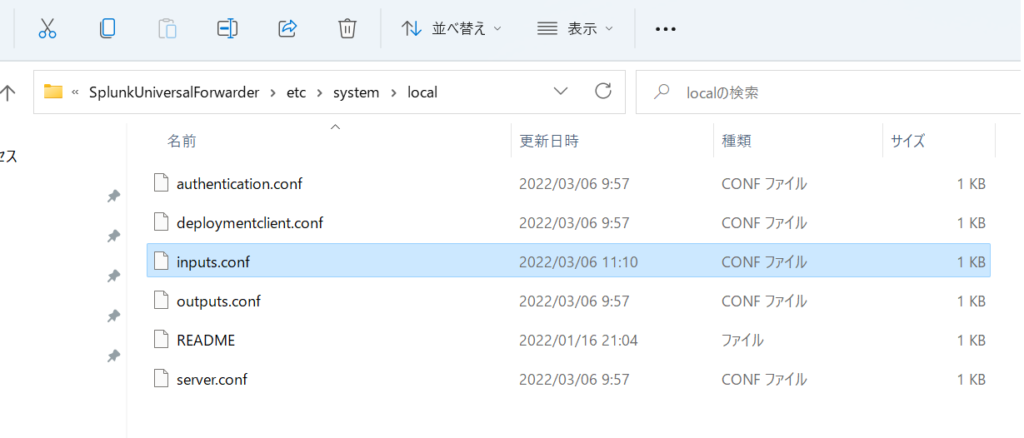
SplunkのAPP 「TA for Microsoft Windows Defender」をSplunkへ導入し、Windows側のUniversalForwarderのinputs.confに次を追加する。

[WinEventLog://Microsoft-Windows-Windows Defender/Operational]
disabled = false
blacklist = 1001, 1150, 2011, 2000, 2001, 2002, 2010

UniversalForwarderを再起動すると、Splunkのサーチでソースタイプとして”WinEventLog:Microsoft-Windows-Windows Defender/Operational”が見えるようになる。

Raspberry PiへUniversalForwarderをインストール

インストールの手順: https://www.splunk.com/ja_jp/blog/tips-and-tricks/how-to-install-universal-forwarder-01.html

DownloadのLINK: https://www.splunk.com/en_us/download/universal-forwarder.html

インデックスサーバへ転送するための設定:

indexerの設定(PORT 8089)

/opt/splunkforwarder/bin/splunk add forward-server <INDEXER_IP>:<INDEXER_PORT>

モニター対象のファイル設定

How to install Splunk Forwarder on Ubuntu

例:$sudo splunk add monitor /var/log/apache2/access.log

モニター用のコマンド
[sudo] $SPLUNK_HOME/bin/splunk add monitor <取り込みファイルorディレクトリパス> [-パラメータ 値]

OSの起動時にsplunkを起動する設定

/opt/splunkforwarder/bin/splunk enable boot-start

FAT32のUSBをUbuntuへマウントしてoutlookのメール(*msg)を解析する

必要なツールをインストール
$ sudo apt install mpack
$ sudo apt install libemail-outlook-message-perl libemail-sender-perl

/dev/sdb1 がFAT32のUSBで、/mnt/tmpへマウント
mount -t vfat -o defaults,utf8 /dev/sdb1 /mnt/tmp

msgファイルをemlへ変換
$ msgconvert *.msg

*emlファイルが生成されるので、emlファイルを解析
$ munpack *eml

raspberry piでマルチブートを試してみる

raspberryPiで利用できるマルチブートの環境として、PINN(PINN IsNotNoobs)Berrybootなどが知られている。

PINNでカスタムOSを利用する手順のリンク

結構煩雑な手順を踏む必要がある。

https://github.com/procount/pinn/wiki/How-to-Create-a-Multi-Boot-SD-card-out-of-2-existing-OSes-using-PINN

PINN用のカスタムOS設定に必要なファイル

https://sourceforge.net/projects/pinn/files/

BerryBoot用に設定されたOSイメージのダウンロードリンク

https://sourceforge.net/projects/berryboot/files/

PINNよりも公開されているカスタムOSの種類が多く、さらに導入手順も比較的容易。実際に試してみたところ、swapをONにする設定ができない模様。

その後の調査でBerryBootのファイルシステムはoverlayとなっていてることがswapを設定できない原因らしい。最近のRaspberry OSでは、swapの設定を/sbin/dphys-swapfileのスクリプトで実行しているが、こんな記事を発見。
[Solved] With overlay of root, swap does not work

解決方法として:

〇dphys-swapfileを利用しない。

〇swapとしてファイルではなく、(overlayとは別の?)デバイスを指定する必要があると理解。

次のように、SSDのパーティションにswap用に4GBを割り当ててみました。

evice     Boot    Start       End   Sectors   Size Id Type
/dev/sda1           2048    262143    260096   127M  e W95 FAT16 (LBA)
/dev/sda2       47955968 468860927 420904960 200.7G 83 Linux
/dev/sda3       39567360  47955967   8388608     4G 82 Linux swap / Solaris

swapファイルの指定は、昔ながらの(?)/etc/fstabに記述します。

/dev/sda3       swap swap defaults 0 0

その結果、4GBのswap領域を確保することができた。

$ free
              total        used        free      shared  buff/cache   available
Mem:        3798908      307284      579676       47612     2911948     3366744
Swap:       4194300           0     4194300

BerryBootでインストールした複数のOS毎に、以上のようにswap設定を変更することで、目的を達成!

OCRをマルチプロセスで処理

参考にしたサイト

multiprocessing — プロセスベースの並列処理 を参考に試す

from multiprocessing import Pool

def f(x):
    return x*x

if __name__ == '__main__':
    with Pool(5) as p:
        print(p.map(f, [1, 2, 3]))

時間がかかっているOCR処理のコードを抜きだして関数化。一文字の画像を入力(peace)として、文字認識を行い、結果の数字を返す。高速化のために、事前に数字が入っていないと思われる画像については、OCRせずに、ゼロを返す。また、OCRの結果、数字以外として認識した場合も、ゼロを返す。

def ocr(peace):
    global p_max
# 画像イメージの総和が事前に計算したp_maxより小さい場合にOCRを呼び出す
    if np.array(peace).sum()<p_max: 
        conf='-l eng --psm 6  outputbase digits'
        txt=pytesseract.image_to_string(peace, config=conf)
        txt=remove_control_characters(txt)
        if txt.isdigit():
            ret=int(txt)
        else:
            ret=0
    else:
        ret=0
    return ret

multiprocess導入前のコード

画像81個(=9×9)をfor ループで一枚づつOCRを実行していた。peacesは画像81個のデータ。peaceは画像1個のデータ

my_bar = st.progress(0) # 時間の経過がわかるようにプログレスバーを設定
for peace in peaces:
        t = p_size[n]
        if t<p_max:
            txt=pytesseract.image_to_string(peace, config=conf)
            txt=remove_control_characters(txt)
            try:
                 ans=int(txt)
            except:
                 ans=0
               st.write('Error at:',n,'(',txt,')')
            else:
                 ans=0
            row.append(ans)
            my_bar.progress(int(100*n/80))
            n=n+1

row2=np.array(row).reshape(-1,9).tolist() # 結果を 9x9の形に
st.success(row2)

multiprocess導入後のコード

with Pool(int(CORE)) as p: # COREはセレクターで選んだ数 1,2,4,8,10,12,16,32
     ans=(p.map(ocr, peaces))

row.append(ans)
row2=np.array(row).reshape(-1,9).tolist()
st.success(row2)

結果 Pi4 Ubuntu20.04

$ uname -a
Linux ubuntu 5.4.0-1047-raspi #52-Ubuntu SMP PREEMPT Wed Nov 24 08:16:38 UTC 2021 aarch64 aarch64 aarch64 GNU/Linux
------------------------------
Pool 経過時間
1	  17.721517086029053
2	  12.919192552566528
4	  12.035958051681519
8	  10.886781454086304
12	 10.22145414352417
16	 10.279670715332031
32	 11.4353609085083

rock pi(6 core)

$ uname -a
Linux rock 4.4.154-110-rockchip-gcef30e88a9f5 #1 SMP Mon Jun 22 07:37:10 UTC 2020 aarch64 aarch64 aarch64 GNU/Linux
------------------------------
Pool 経過時間
1	  10.592926979064941
2	  7.96256422996521
4	  5.769669532775879
8	  5.157710552215576
12	 5.265762567520142
16	 5.468385457992554
32	 6.696927785873413

i7-10700K/Windows11/WSL2(8 core 16 thread)

$ uname -a
Linux DESKTOP-P8UNEDG 5.10.60.1-microsoft-standard-WSL2 #1 SMP Wed Aug 25 23:20:18 UTC 2021 x86_64 x86_64 x86_64 GNU/Linux
------------------------------
Pool 経過時間
1	  1.669569969177246
2	  0.8932185173034668
4	  0.5116889476776123
8	  0.4094092845916748
12	 0.35788488388061523
16	 0.4156327247619629
32	 0.38041210174560547

----VirtualBOX
1: 2.208763360977173
2: 3.9075162410736084
4: 3.83050274848938

---WSL2 windows11 再インストール後
1: 1.7535254955291748
2: 0.9307124614715576
4: 0.5294575691223145

i7-8750H Windows10/WSL2( (6 core 12 thread)

Linux DESKTOP-NI63ODB 5.10.60.1-microsoWindows11/WSL2(ft-standard-WSL2 #1 SMP Wed Aug 25 23:20:18 UTC 2021 x86_64 x86_64 x86_64 GNU/Linux
-----------------------------------
1: 4.477121353149414
2: 2.522892475128174
4: 1.4394028186798096
8: 1.1422605514526367

Core(TM) i7-3770/WSL2(4 core 8 thread)

Linux mars-PC 4.4.0-19041-Microsoft #1237-Microsoft Sat Sep 11 14:32:00 PST 2021 x86_64 x86_64 x86_64 GNU/Linux
----------------------------------
1: 10.84971809387207
2: 6.165481805801392
4: 4.313432216644287
8: 4.449507713317871